
Overview
IMP Finance and IMP Purchasing share the same login system. If you already have an IMP Planner or IMP Purchasing account, you use the same credentials to access IMP Finance. There is no separate login.
This guide covers how to log in, how to register for the first time, what to do if you need to reset your password, and what to do if you cannot get in.
Video: Getting Started, Logging In
Watch this short video to see how to register and log in for the first time.
Please note: this video shows an earlier, single-screen version of the sign in page. The registration steps are the same. For the current sign in screens, see How to Log In below.
How to Log In
Signing in takes two screens. Open https://impfinance.co.uk in your web browser. If you are not already signed in, you are taken to the Sign in to IMP page.
Step 1: Enter your username
- In the Username box, enter your username. For IMP Finance this is the full email address you registered with.
- Select Next.
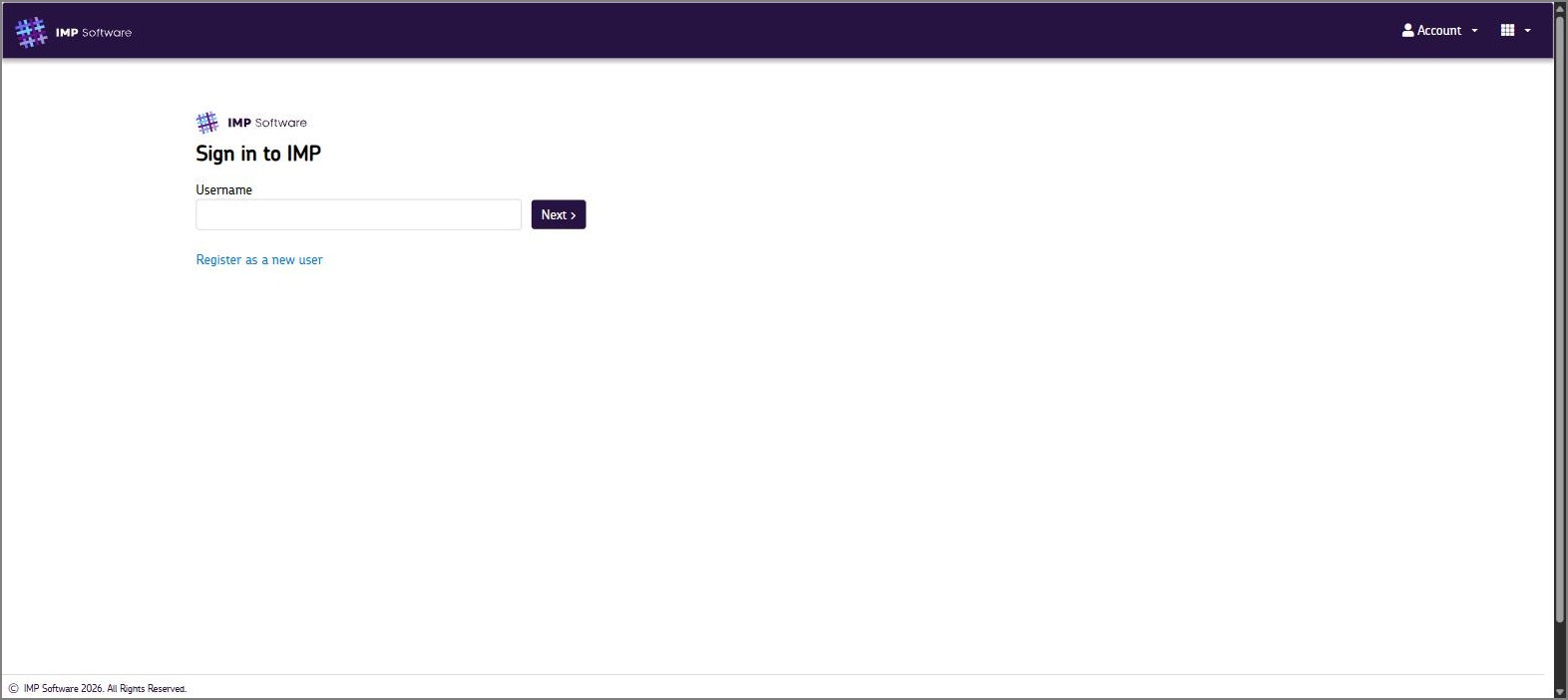
Step 2: Enter your password
- Your username is shown at the top of the second screen. If it is wrong, select Change username to go back.
- Enter your Password.
- Select Sign in.
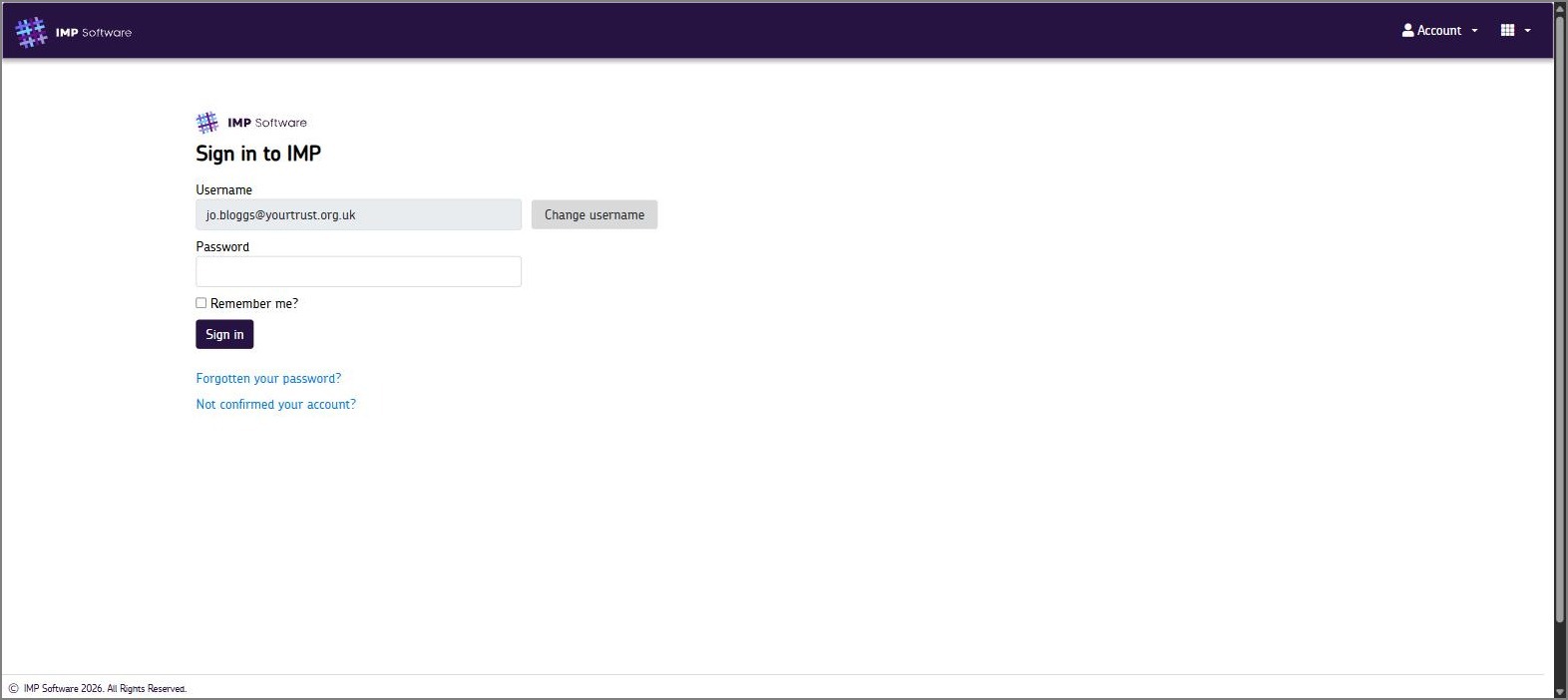
The second screen also holds the Forgotten your password? and Not confirmed your account? links. See Forgotten Password and Resend Confirmation Email below.
After logging in, you are taken to the Dashboard. The menu items you see depend on how your account has been set up.
Saved Passwords and Autofill
Because the username and password are on separate screens, a password saved in your browser may not fill in automatically the first time. Your saved password still works. Your browser just needs to learn the new page.
The simplest fix is to sign in once by typing your details manually. When your browser offers to update the saved password, accept it. From then on it will fill in as usual.
If you would rather check or correct the saved entry directly:
- Google Chrome: three dots menu > Passwords and autofill > Google Password Manager.
- Microsoft Edge: three dots menu > Settings > Profiles > Passwords.
- Mozilla Firefox: menu > Passwords.
- Safari: Safari menu > Settings > AutoFill, or Passwords.
If your password manager is provided by your trust rather than your browser, contact your IT team.
Registering as a New User
How you register depends on whether you already use another IMP product.
Existing IMP Planner User
If you are already registered in IMP Planner, your administrator must also add you as a user in IMP Finance. Once added, you can log in using your usual IMP Planner credentials on the IMP Finance login page.
New IMP Finance User
If you have never used IMP Planner, follow these steps to register for IMP Finance:
- Your administrator must first create you as a Person in IMP Finance and assign you a Profile.
- Go to the IMP Finance login page and select Register as a new user.
- Enter your email address, create a secure password, and confirm it.
- You will receive a confirmation email. Open the email and select the link to complete your registration.
- Return to the login page and sign in using the two steps in How to Log In above. Your email address is your username.
Password rules: Your password must be at least 8 characters and include a digit, an uppercase letter, a lowercase letter, and a non-alphanumeric character.
Menu Items Are Missing After You Log In
If you log in successfully but cannot see the menu items you expect, such as Postings, Period-End, VAT, Codes, Banking or Enquiries, your account has not yet been set up for them.
Contact your system administrator, who can check how your account is configured and put it right.
Shared Login with Purchasing
IMP Finance and IMP Purchasing share a single login. You do not need separate accounts or passwords for each product. You will see menu items for both Finance and Purchasing after logging in.
Any changes to your password or account settings apply across both products.
Forgotten Password
- On the sign in page, enter your Username and select Next.
- On the second screen, select Forgotten your password?
- The Forgot your password? page opens with your address already filled in the Email box. Check it, then select Submit.
- The message If you have an account, you'll receive an email from us. confirms the request. The password reset link is sent to the email address held on your account.
- Follow the link to reset your password and log in.
Note: The same message appears whether or not an email is sent. No reset email is sent if your account has not been confirmed yet (use Resend Confirmation Email instead), or if your user has been disabled.
If you do not receive the reset email, check your spam or junk folder. If the issue persists, contact your system administrator.
Resend Confirmation Email
If you have not received your registration confirmation email:
- On the sign in page, enter your Username and select Next.
- On the second screen, select Not confirmed your account?
- The Resend email confirmation page opens with your address already filled in. Select Resend.
- You are returned to the sign in page, and a new confirmation email is sent to the email address held on your account.
I Cannot Get Past the Sign In Screen
I see "The Username field is required." The Username box is empty. Enter your username, then select Next.
My password did not fill in automatically. This is expected the first time. See Saved Passwords and Autofill above.
I get "Can't sign you in. Check username or password." Check the username first, including that it has no space at the start or end, then the password. If you are unsure of your password, use Forgotten your password? on the second sign in screen.
I get "Please confirm your email before attempting to login." Your account has not been confirmed yet. Follow the link in your confirmation email, or see Resend Confirmation Email above.
I see "Account locked". After 5 unsuccessful sign in attempts in a row, your account is locked for 5 minutes. Wrong two-factor authentication codes count towards the same limit. While the account is locked you cannot sign in, even with the correct password. Wait 5 minutes, select Log in, and sign in again. If you are unsure of your password, use Forgotten your password? rather than trying again.
I see an error page when I select Next. If your browser shows an error page such as HTTP ERROR 429 after selecting Next, wait a minute and try again. This can happen when a very large number of sign in attempts come from your organisation's network in a short time. If several people in your organisation see this at the same time, contact IMP Support. It is not a problem with your account.
I see "You don't have access to this product". Your account is not set up to use IMP Finance or IMP Purchasing. This page also appears within about a minute of your administrator disabling your user. Select Logout, then contact your system administrator.
I still cannot get in. Contact your system administrator, or email support@impsoftware.co.uk.
Key Points
- Sign in at https://impfinance.co.uk.
- Signing in takes two screens: username, then password.
- IMP Finance and IMP Purchasing share the same login. Use the same username and password for both.
- Signing in once gives you access to every IMP product you have access to, without signing in again.
- After 5 unsuccessful sign in attempts your account is locked for 5 minutes. Wait, then sign in again.
- If menu items are missing after you log in, contact your system administrator.
- Use the Forgotten your password? link on the second sign in screen if you need to reset your password. The reset email goes to the email address held on your account.