
Overview
For adding or updating multiple staff members in your budget at once, you can use Scenario Import/Export of Staff Members. This is useful when you need to make bulk changes — for example, updating payroll locations to blank for all staff, enabling or disabling multiple staff members, or updating dates of birth across the trust.
When using Scenario Import/Export for editing existing staff members, the only available fields to edit are: FirstName, LastName, PensionOptOut, ServiceStartDate, DateOfBirth, Apprenticeship, StaffMemberEnabled, Payroll Location, Gender, and Casual.
In This Guide
- Step 1: Export Staff Members
- Step 2: Open Downloaded File
- Step 3: Delete Rows Unrelated to Editing
- Step 4: Make Edits and Add New Rows
- Step 5: Save File for Upload
- Step 6: Import File to IMP Planner
- Common Examples
- Frequently Asked Questions
See also: IMP Planner: Scenario Import/Export (System Manual) | IMP Planner: Why did my import fail?
Step 1: Export Staff Members
Export "Staff Members" to a CSV file. For guidance on how to export, see IMP Planner: Scenario Import/Export (System Manual).
Step 2: Open Downloaded File
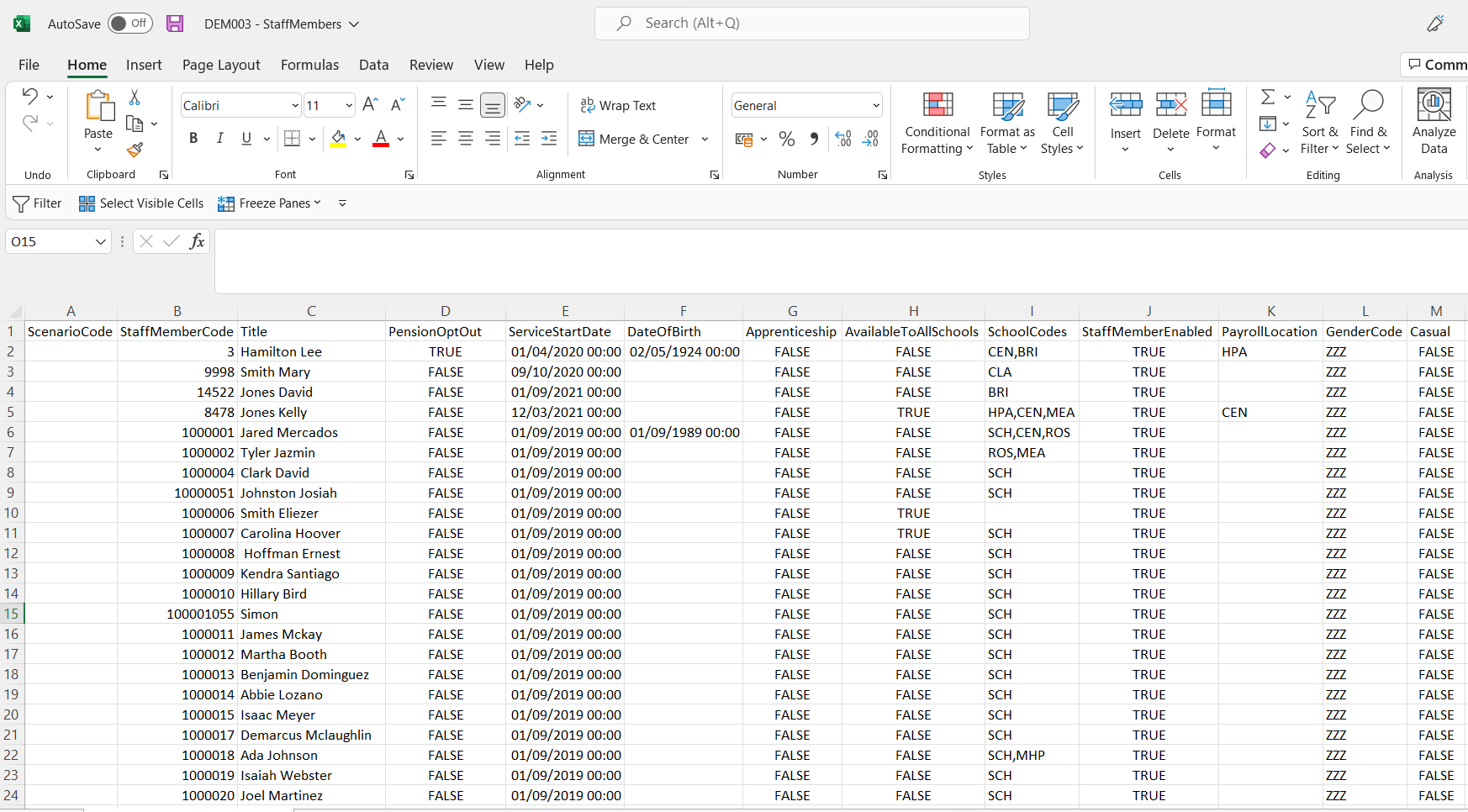
Once downloaded, open the file in Excel.
Step 3: Delete Rows Unrelated to Editing
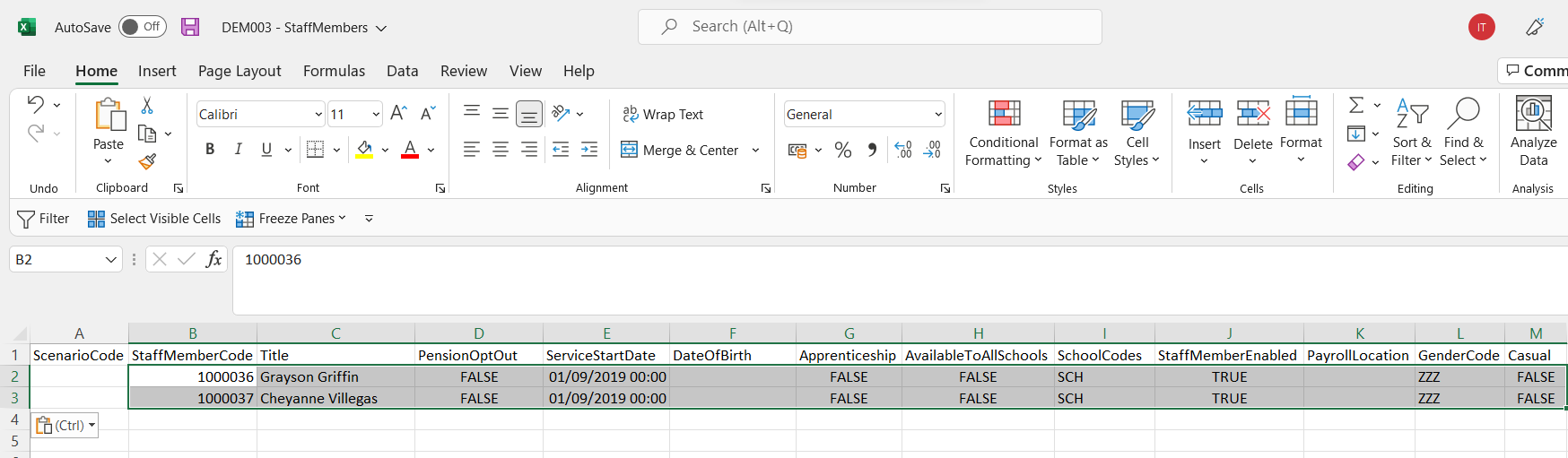
Delete any rows from the Excel document that you do not want to edit. This prevents any unintentional changes from making their way into IMP Planner.
Step 4: Make Edits and Add New Rows
Edit the rows that need to be altered.
Additional rows can also be added at this point if necessary.
Step 5: Save File for Upload
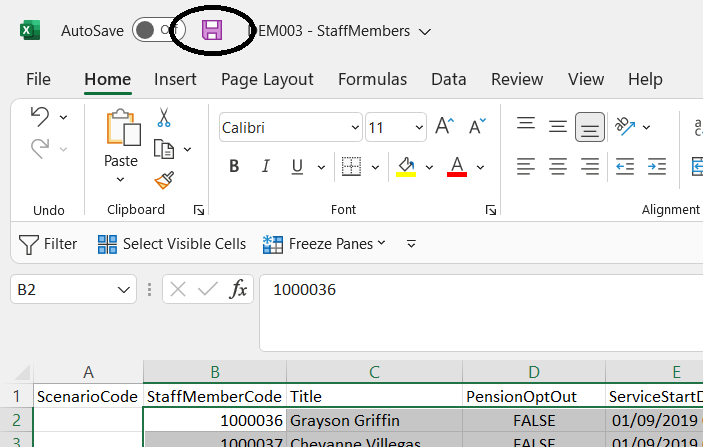
Click the Save icon in the top left of Excel. Make sure to save as file type CSV; IMP Planner will only accept CSV files for import.
Step 6: Import File to IMP Planner
The file can now be uploaded into IMP Planner. See IMP Planner: Scenario Import/Export (System Manual) for guidance on how to import.
Common Examples
Update Payroll Locations to Blank for All Staff
To update payroll locations to blank for all staff members in bulk:
- Export Staff Members to a CSV file (see Step 1).
- Open the file in Excel.
- Find the PayrollLocation column.
- Clear the values in the PayrollLocation column for all rows (select the column, delete the contents, leave the cells blank).
- Do not edit any other columns — only edit the fields listed in the editable fields above.
- Save as CSV and import back into IMP Planner (see Step 5 and Step 6).
Enable or Disable Multiple Staff Members
To enable or disable multiple staff members at once, export the Staff Members file, update the StaffMemberEnabled column to TRUE or FALSE as required, and re-import.
Frequently Asked Questions
How can I update payroll locations to blank for all staff?
Use Scenario Import/Export of Staff Members. Export all staff members to a CSV file, open it in Excel, clear the PayrollLocation column for all rows, save as CSV, and re-import into IMP Planner. This updates all staff members in bulk without having to edit each one individually. See the Update Payroll Locations to Blank for All Staff section above for full steps.
Can I update payroll locations for all staff at once instead of one by one?
Yes. Use Scenario Import/Export of Staff Members to make bulk changes. Payroll Location is one of the editable fields available through the import/export process. Export the file, make your changes in Excel, and re-import — this is much faster than editing each staff member individually.
Which fields can I edit using Staff Members import/export?
The only fields available for editing are: FirstName, LastName, PensionOptOut, ServiceStartDate, DateOfBirth, Apprenticeship, StaffMemberEnabled, Payroll Location, Gender, and Casual. Editing any other fields will cause IMP Planner to interpret the rows as new records rather than updates.
My import failed. What should I do?
Check that you only edited the permitted fields (listed above), that you saved the file as CSV, and that you did not change the structure of the file. For detailed troubleshooting, see IMP Planner: Why did my import fail?.
Need more help?
Contact the IMP Support Team at support@impsoftware.co.uk
or
Visit IMP Voice to submit or vote on a feature request.